HomeWebilityWebility
    • About Us

      Learn about our mission, values, and dedicated team

    • Our Services

      Explore our comprehensive hosting solutions

    • Product Features

      Discover powerful tools and capabilities

    • Blog & News

      Stay updated with latest articles and insights

    What's New

    6 months Workestra CRM free for new Webility web design clients
    • Affiliate

      Earn as affiliate

    • Referral

      Invite friends

    • Login

      Sign in securely

    • Create Account

      Register account

    • Download

      Get software

    • Integration

      Integrate seamlessly

  • Help & Documentation

    • Documentation

      Detailed documentation of the product.

    • Tutorials

      Step-by-step guides to help you get started.

    • CMS Guide

      Client guide for editing Payload-powered sites.

    • FAQ

      Frequently asked questions and answers.

    • Case Studies

      Real-world examples of how the product is used.

    • Whitepapers

      Detailed whitepapers on the product.

    • Support

      Get help and support from our team.

    Knowledge & Research

    • Use Cases

      Explore real-world scenarios where our web hosting delivers results.

    • Success Stories

      Discover measurable outcomes achieved by clients.

    • Analytics

      Dive into performance metrics and data insights.

    • Changelog

      Stay updated with the latest changes and improvements.

    • Glossary

      Terms and definitions.

    Trust & Compliance

    • Security

    • GDPR Compliance

    • Privacy Policy

    • Terms & Conditions

    • Press Coverage

    • Affiliate Policy

    • Legal

    • Process

      Explore our process

    • Team

      Meet our experts

    • Career

      View job openings

    • Testimonial

      Explore testimonials

    • Customer

      Plan, track, and deliver

    • Contact

      Get support help

  • Pricing
Start a project
HomeWebilityWebility

Menu

    • About Webility
    • Services
    • Selected Work
    • Process
    • Why Webility
    • Contact
    • Brand & Digital Identity
    • High-Performance Websites
    • E-commerce Experiences
    • Webflow & Custom Development
    • Ongoing Optimization
    • Blog
    • Tutorial
    • CMS Guide
    • FAQ
    • Glossary
    • Book a Discovery Call
    • Engagement Models
    • FAQ
    • Legal & Policies
    • Privacy Policy
Loading…
WebilityWebility

Strategic web design, identity, and development for Belgian brands that want to be clearer, faster, and easier to choose.

Company

  • About Us
  • Career
  • Case Studies
  • Contact Us

Support

  • FAQ
  • Documentation
  • Tutorial
  • Support

Legal Policies

  • Terms of Service
  • Privacy Policy
  • Data Processing Agreement
  • Cookie Policy
  • Refund Policy
  • GDPR Compliance
  • All Policies

Copyright ©Webility. Belgian design. Global impact.

Domain setup tutorial

How to buy a domain on one.com and connect it to your website

A practical guide for Belgian businesses that buy their domain on one.com. It walks you through choosing a domain, creating the account, completing the purchase, and handing the setup over to Webility so we can connect the domain to your website.

Let Webility handle itFollow the DIY steps

Setup time

30 min

From domain search to a connected website, if your details and payment method are ready.

Setup steps

9

From searching the domain to handing the setup over to Webility.

Yearly upkeep

1 renewal

Auto-renew keeps the domain active. Check contact details once a year.

Best access

Owner + Webility

You keep the one.com owner account. Webility only needs the DNS values.

Before you start

Prepare these details

  • Two or three domain name ideas, in case your first choice is taken
  • Your legal name, business name, and a contact email
  • A phone number and billing address for the order
  • A bank card or other payment method accepted by one.com
  • The website or hosting the domain should point to (your Webility site)
  • Access to the email address that will own the account
01

Go to one.com and open the domain search

Open one.com and use the domain search bar on the homepage. Type the name you want without the extension, for example your business name, then press search to check availability across hundreds of extensions.

Open one.com
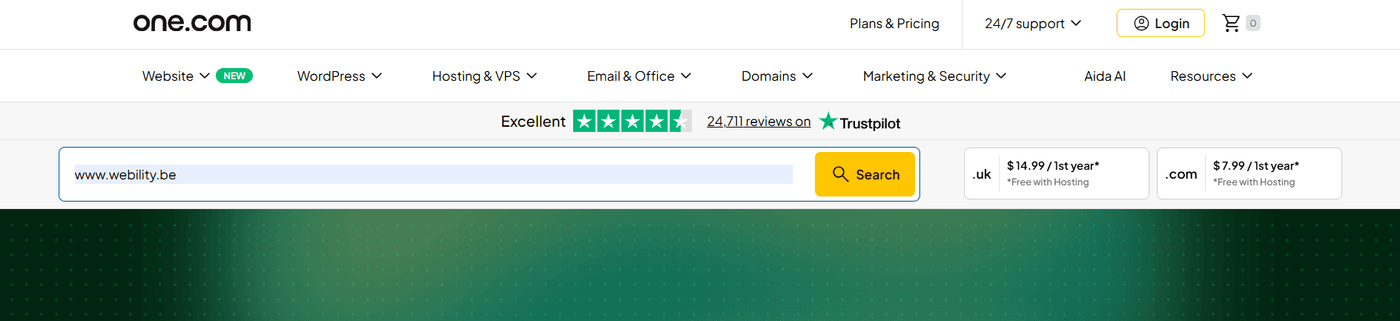
one.com homepage with the domain name search bar
Screenshot — step 1 of the one.com domain purchase
02

Check availability and compare extensions

Look at the results. The .be and .com extensions are the most common for Belgian businesses. If your exact name is taken, one.com suggests close alternatives. Avoid names that are easy to misspell or that imitate another brand.
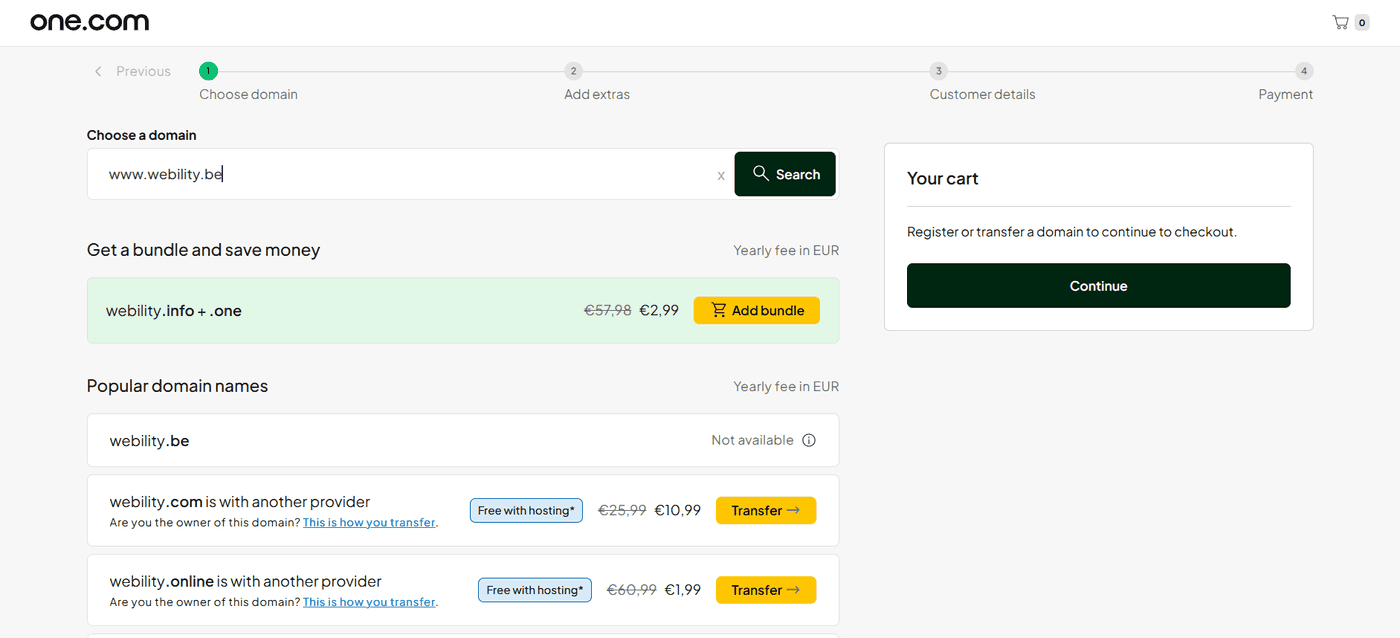
Domain availability results on one.com showing extensions and bundles
Screenshot — step 2 of the one.com domain purchase
03

Add the domain to your cart

Pick the extension you want and click Add to cart. You can register the domain for one or more years. A longer period gives price stability, but one year is fine to start. Do not add extra services you do not need yet.
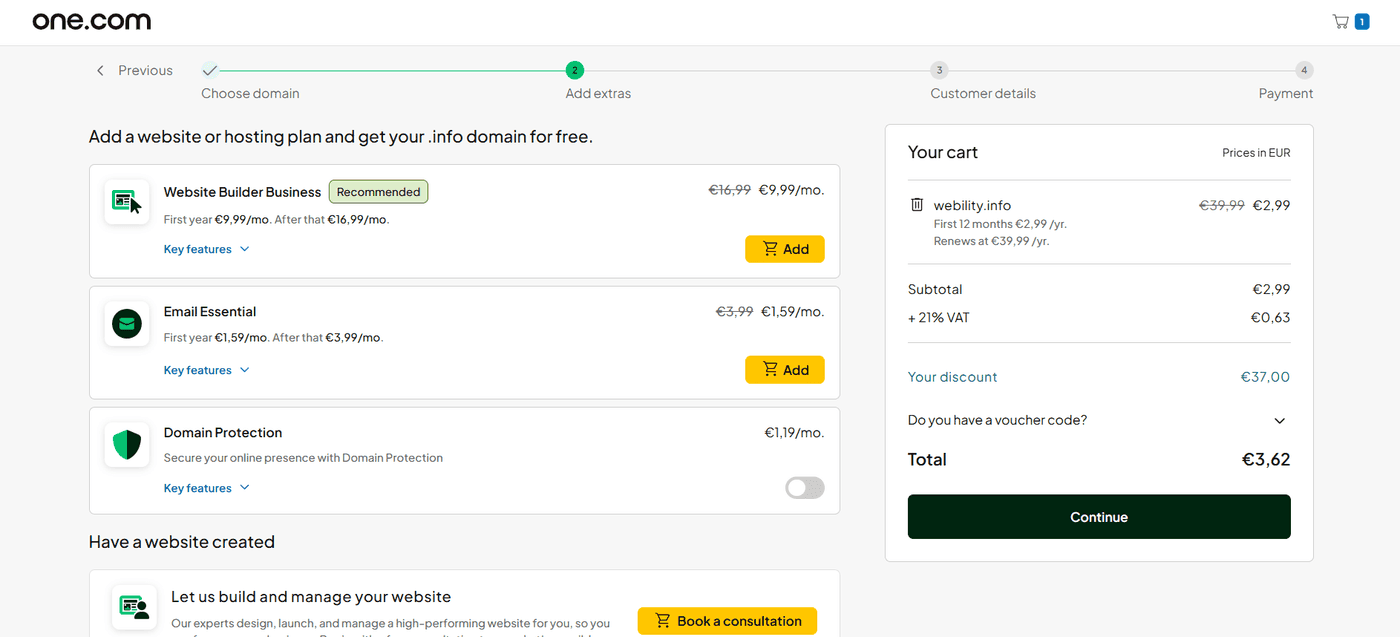
one.com checkout Add extras step with the domain in the cart
Screenshot — step 3 of the one.com domain purchase
04

Create your one.com account

At checkout you are asked to create an account. Use an email address the business controls, not a personal address that may change. Choose a strong password and store it in a password manager, because this account owns the domain.
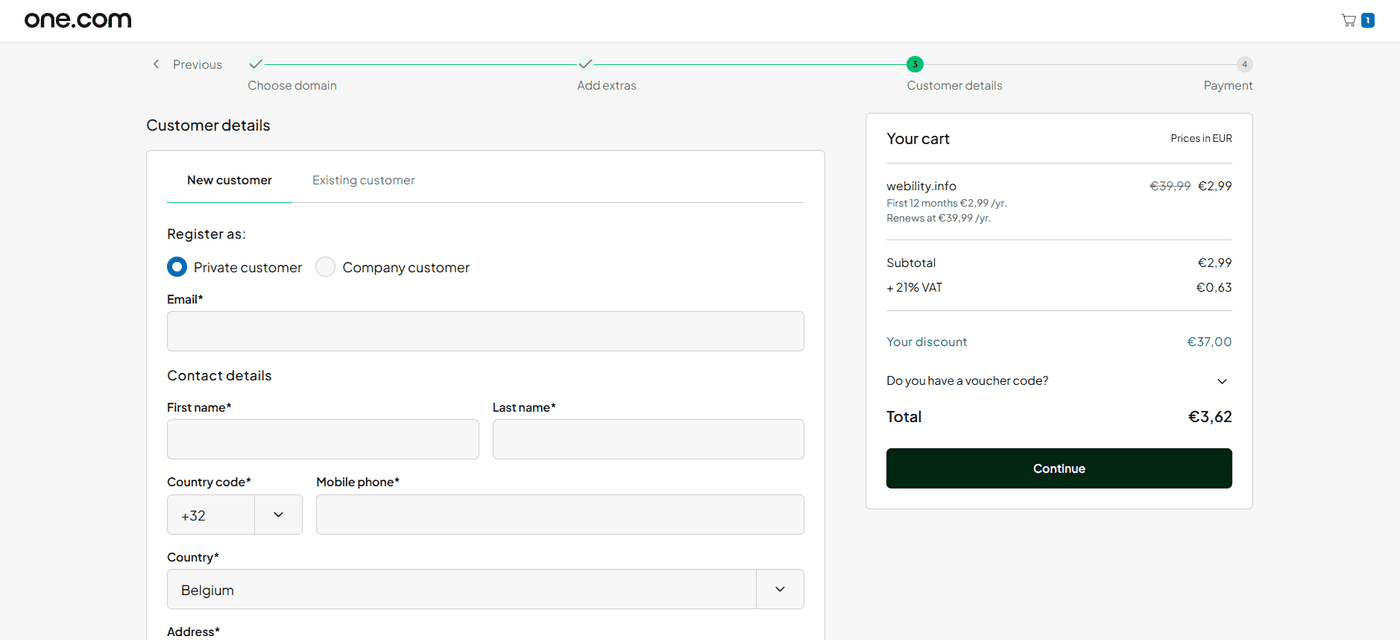
one.com Customer details form during account creation
Screenshot — step 4 of the one.com domain purchase
05

Enter the contact and registrant details

Fill in your real name, business name, address, and phone number. These details are attached to the domain registration. For .be domains you can usually enable WHOIS privacy so your personal data is not shown publicly.

06

Review the order and accept the terms

Check the domain name spelling carefully before paying. Confirm the registration period, the renewal price, and the auto-renew setting. Read and accept the terms of service and the domain registration agreement.

07

Complete the payment

Pay with your card or another accepted method. You receive an order confirmation by email. The domain registration is processed a few minutes after payment, and the domain appears in your one.com Control Panel.

08

Confirm your account by email

Open the verification email from one.com and confirm your email address. This protects your account and makes sure you receive renewal warnings. Use the same email for any future recovery of the account.

09

Tell your Webility project manager

Once your account is created, the domain is paid, and your email is confirmed, let your project manager at Webility know. We take over from here: we configure the DNS records, point the domain to your website, set up the SSL certificate, and confirm the site is live. You do not need to touch any DNS settings yourself.

After purchase

Keep the domain safe and active

A domain is renewed every year. A few simple checks after purchase prevent downtime, lost access, and surprise costs.

  • Keep auto-renew enabled, or note the renewal date in your calendar.
  • Confirm the billing card on the account is still valid.
  • Make sure the owner email address still works and is monitored.
  • Share the DNS values or access with Webility only when needed.
  • Check that the website still loads with HTTPS, without a certificate warning.
  • Save the one.com login in a password manager the business controls.

Avoid these mistakes

What usually causes problems

  • Letting the domain expire because auto-renew was off or the card was old.
  • Registering a name that is very close to a competitor or a trademark.
  • Using a personal email as the owner that you later lose access to.
  • Buying extra services at checkout that you do not need yet.
  • Editing DNS records yourself after the purchase and breaking the website or email.
  • Forgetting to tell Webility once the purchase is done, so the setup stalls.
  • Giving Webility the full account password instead of just the access we ask for.
  • Changing the name servers or DNS behind Webility's back later on.
Official resources

Useful one.com documentation

Search and buy a domain on one.comHow to register a domain nameOrder another domain from the Control PanelManage your DNS settingsChange the name serversTips before you buy a domain name
Need help?

Want Webility to buy, configure, and manage your domain for you?

We can register the right domain, set up the DNS records, keep it renewed safely, and connect it to your website and email without you touching any technical settings.

  • No obligation

  • Free project consultation